
PLUBOX operations guide
A practical checklist for a monthly owner report
Published · English
An owner usually wants three answers: what did the property earn, what have you already paid, and what is left to pay? Start with the monthly report, check the entries behind those figures and send a short explanation of anything unusual. The example and template below show what to include.
PLUBOX Owner
What owners can check in the app
PLUBOX Owner shows each month's income, property expenses and cleaning costs. Owners can see recorded payments and the balance still due to them.
Open an income, cost or payment line to see how the amount was calculated. You can also return to an earlier month and check its current figures.
October 2026: EUR 763.20 in income less EUR 105 in property expenses and EUR 100 in cleaning leaves EUR 558.20. The management report rounds amounts to whole euros.
PLUBOX Owner on Google Play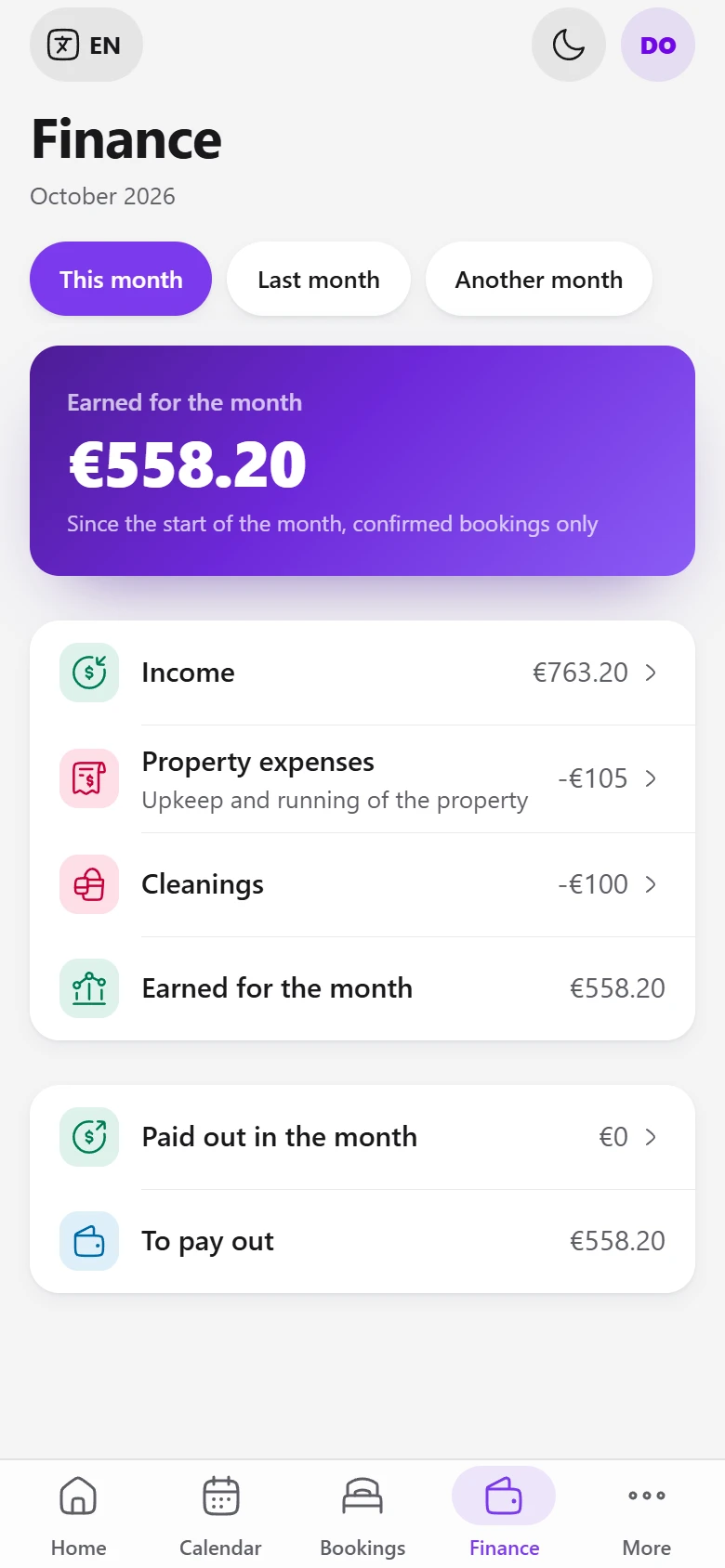
Why we moved owner reporting out of Excel
We used to send owners Excel or PDF statements. In Excel, a formula could produce the wrong result. After a file was revised, it was hard to retrace how a figure from two months earlier had been calculated.
PLUBOX Owner lets an owner choose a month and open the income, cost and payment lines behind the figures. The owner and manager can discuss the same period and the entries that make up the result. PLUBOX handles the calculation from the saved records and management terms.
1. Choose the month and confirm the properties
In the admin app, open Management, then Performance. Select the month and the property you are reporting on. Write the month, property list and currency in the update you send, so the owner can match it to the report.
Use a closed month for a final report. If you share the current month, label it as an open-month report and state when you checked it. Keep currencies separate; PLUBOX does not convert mixed currencies into a single report total.
- Month and property list
- Currency
- Final report or open month with a checked date
- Owner has access to the intended properties
2. Match income to the bookings
Match the income entries to the bookings and the owner’s share under the management terms. Check cancellations, date changes and stays that cross the month end. For a stay from 31 October to 2 November, confirm which nights and amounts appear in October before explaining that month’s earnings.
Keep booking value, guest payments and the owner’s earnings separate. A €300 booking with €220 received leaves €80 to investigate in the payment records. That €80 is not automatically the amount owed to the owner. Use the booking reference to follow up without copying guest contact details into the report.
3. Explain the month’s earnings after costs
Check the income, services, cleaning and expense lines in the report. Follow an unusual cost back to its entry and confirm who bears it under the management agreement. Include utilities and repairs in the month and property they belong to.
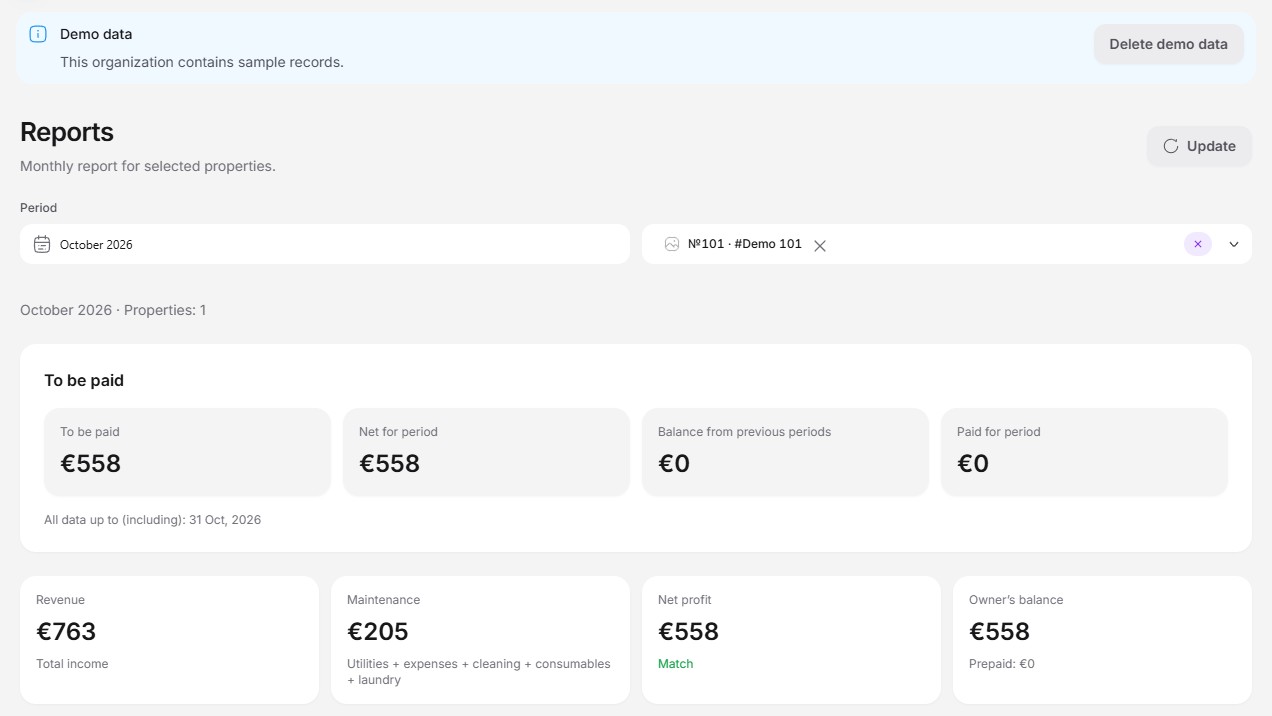
The demo report above has five confirmed bookings totalling €954. Its management terms allocate 80% to the owner and 20% to the company. The owner’s revenue is shown as €763, rounded as on the screen. The worked example below uses the same displayed figures. The management share is already excluded, so do not subtract it again as a fee.
| Item | Amount | Explanation |
|---|---|---|
| Revenue | €763 | Owner’s 80% share of €954, rounded on screen |
| Expenses | €105 | Expenses included in this owner report |
| Cleaning | €100 | Cleaning costs included in this owner report |
| Maintenance total | €205 | €105 expenses plus €100 cleaning |
| Net for period | €558 | €763 revenue less €205 maintenance |
4. Reconcile the amount left to pay
Add Balance from previous periods to Net for period, then subtract Paid for period. This is the calculation behind To be paid. Use all four figures for the same property scope, month and currency.
In this demo, no earlier balance or owner payout is recorded, so the remaining balance is €558. To see how those lines change the result, take a separate example: €200 carried forward plus €1,200 earned, less €1,000 already paid, leaves €400. Check recorded payments against your transfer records; the calculated balance does not send money.
After correcting a past month, also check the balance brought into the following month before confirming a payout.
| Report line | Amount |
|---|---|
| Balance from previous periods | €0 |
| Net for period | €558 |
| Paid for period | €0 |
| To be paid | €558 |
5. Write the explanation the owner will need
Start with a short explanation of the result. For this demo: “The October report shows your share of revenue as €763, expenses of €105 and cleaning of €100. That leaves €558. No owner payouts have been recorded. Figures are shown as whole euros.” Then explain any unusual cost using its actual source entry.
If a booking or expense is wrong, correct that record and refresh the report for the affected month. PLUBOX does the calculation; you do not have to repair spreadsheet formulas or type a new total into a second file.
For an unresolved cost or payment, give the owner the record reference, who will check it and when to expect an update. If you already sent a statement, keep that copy and explain the correction. A reopened period shows the calculation from the records currently stored, not a frozen copy of the earlier statement.
Copy this monthly update
Select the text to copy it, or download the template and edit it in any text editor.
Monthly owner report: [month and year]
Properties: [property numbers]
Currency: [currency]
Status: [final / open month, checked on date]

Owner revenue after management allocation: [amount]
Owner costs: [categories and amounts]
Net for period: [amount]
Balance from previous periods: [amount]
Paid for period: [amount and payment references]
To be paid: [previous balance + net for period - recorded payouts]

Explanation of unusual entries: [reason and record reference]
Previous statement sent: [date / not applicable]
Correction to a previous report: [what changed, amount, source record]
Open question: [record, person responsible, update date]
Report link: [link]
Questions: [contact]
Download the editable template (TXT)
6. Send the report with a clear next step
If the owner uses PLUBOX Owner, confirm their linked properties and direct them to Finance, where they can select Last month or Another month. Send the short update through your agreed email or messaging channel and name the month to select. Give the owner a contact for questions and the expected date of the next update.
Download the editable template above, fill in one currency at a time and keep a copy of what you sent. If you later correct a booking, expense or payout, send the corrected figures with a sentence explaining what changed.
See these steps in PLUBOX
Request a walkthrough of the screens in this guide. Include your property count and the part you want to try.